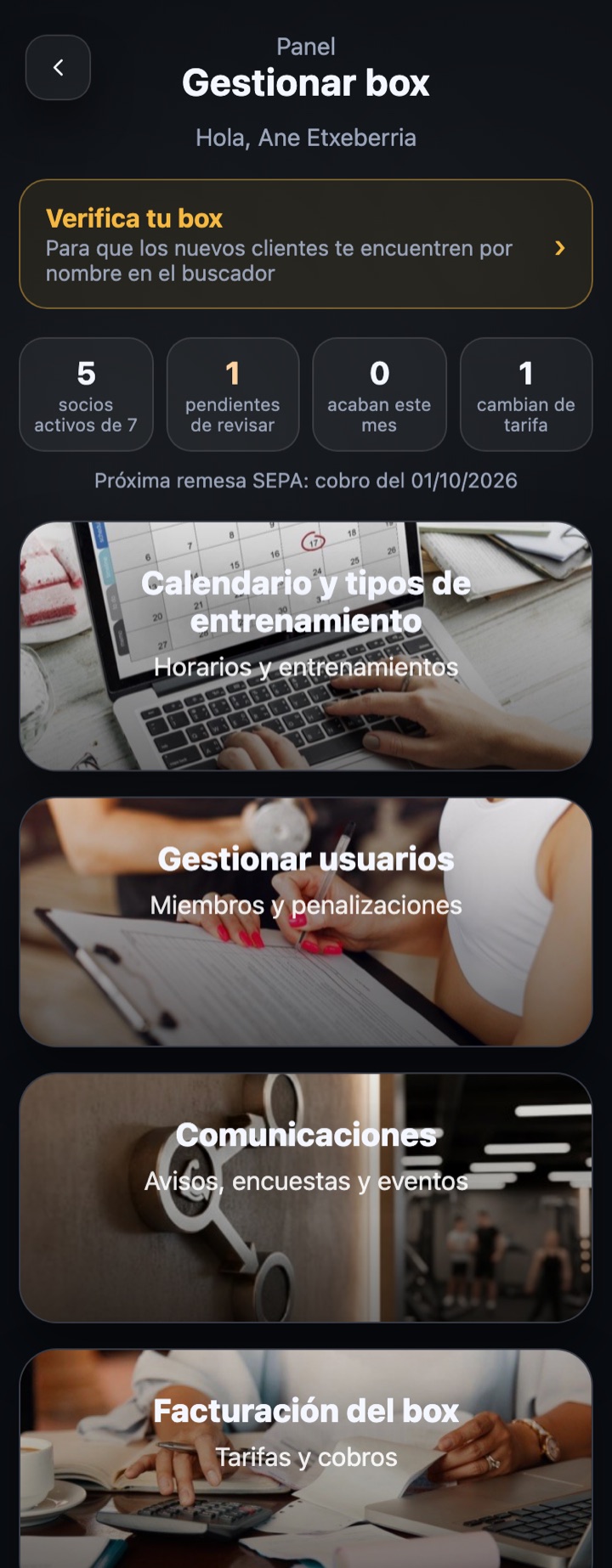
From "Calendar and training types" you define everything members see when booking: which classes there are, at what times, how many spots each has and when booking opens. Everything is saved automatically when changed; at the very bottom you have "View the calendar as a member sees it" to check the result.
BOX documentation
Calendar and training types
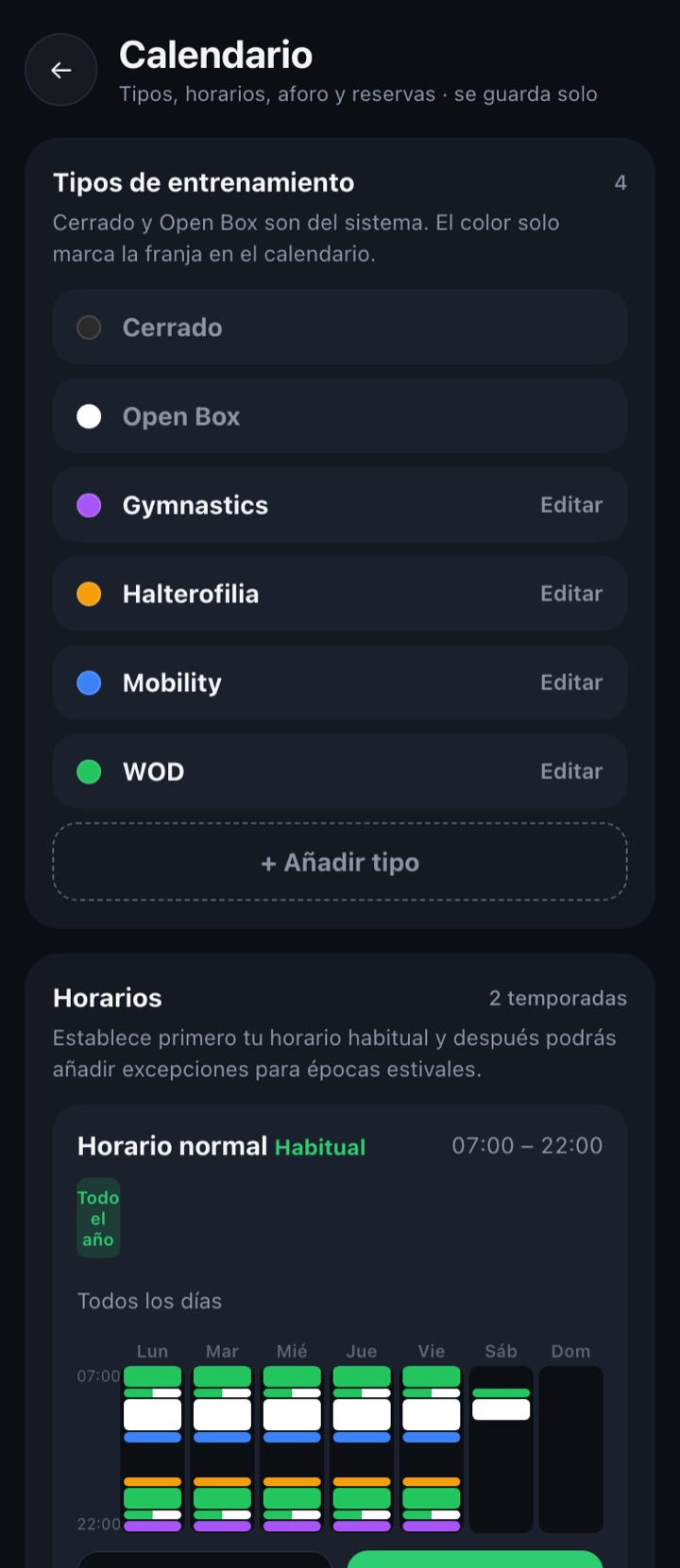
1. Training types
They are the colour labels you use to identify each class in the calendar (WOD, Weightlifting, Mobility, Gymnastics…). "Closed" and "Open Box" are created by the system: the first blocks a slot and the second marks free-training time.
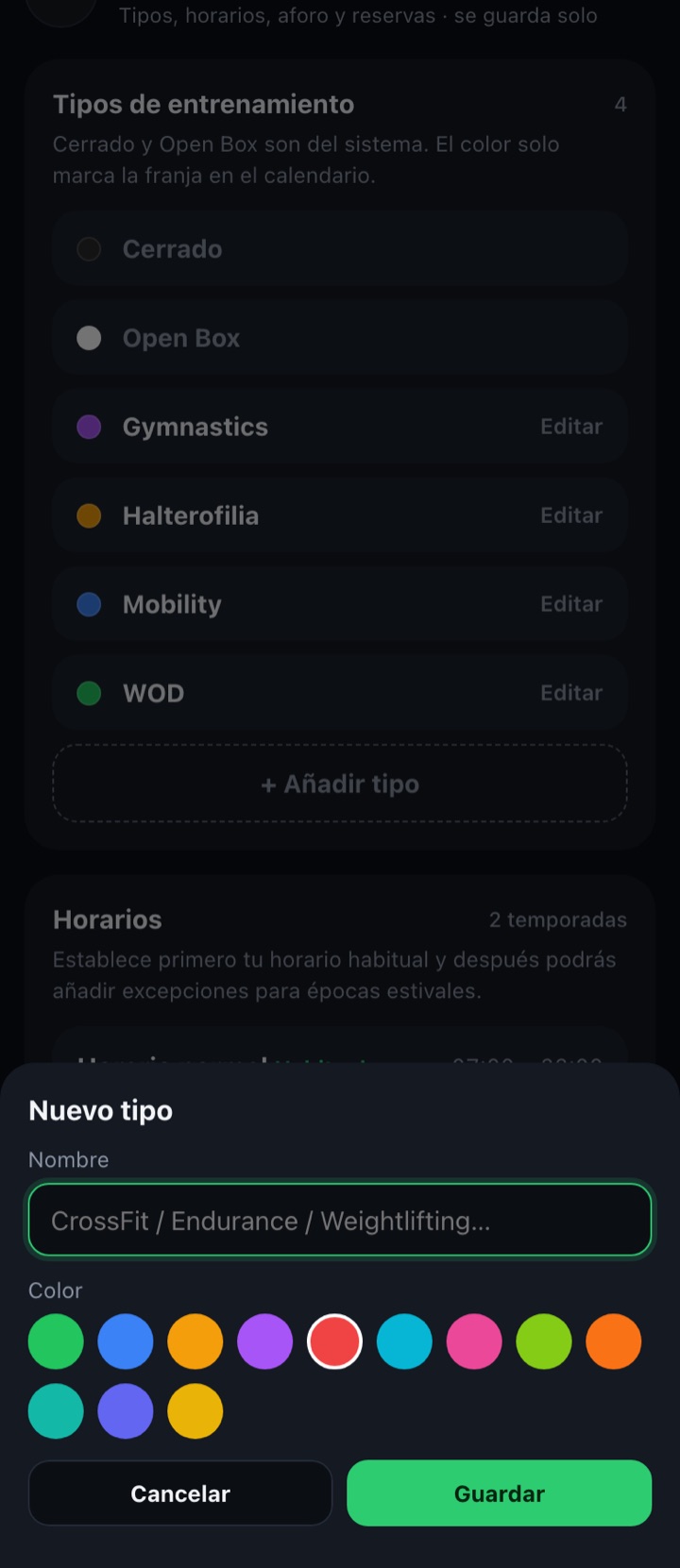
Add or edit a type
- Tap "+ Add type" (or "Edit" on an existing one).
- Write the name and pick a colour from the palette.
- Save. The type appears in the list and can now be used in slots.
- If you delete a type, it disappears from every slot it was in.
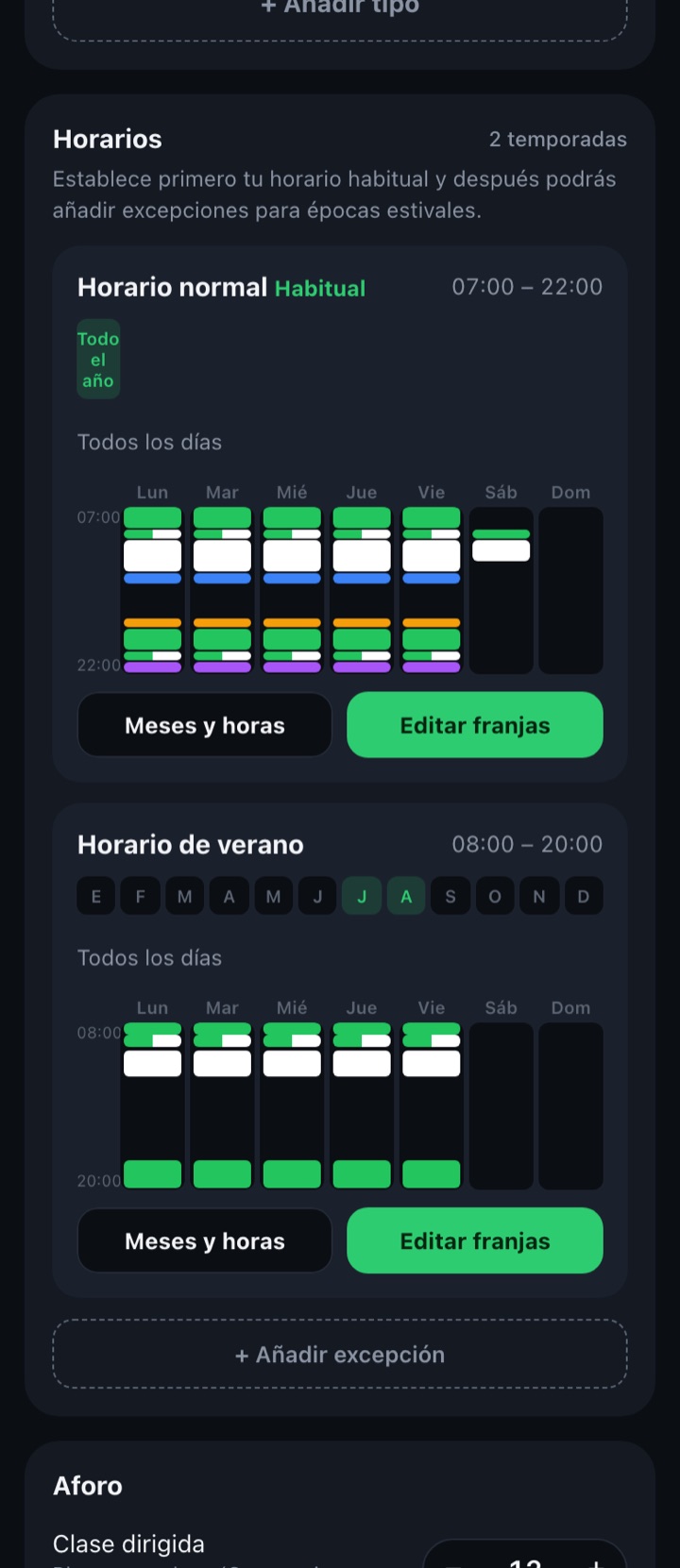
2. Schedules
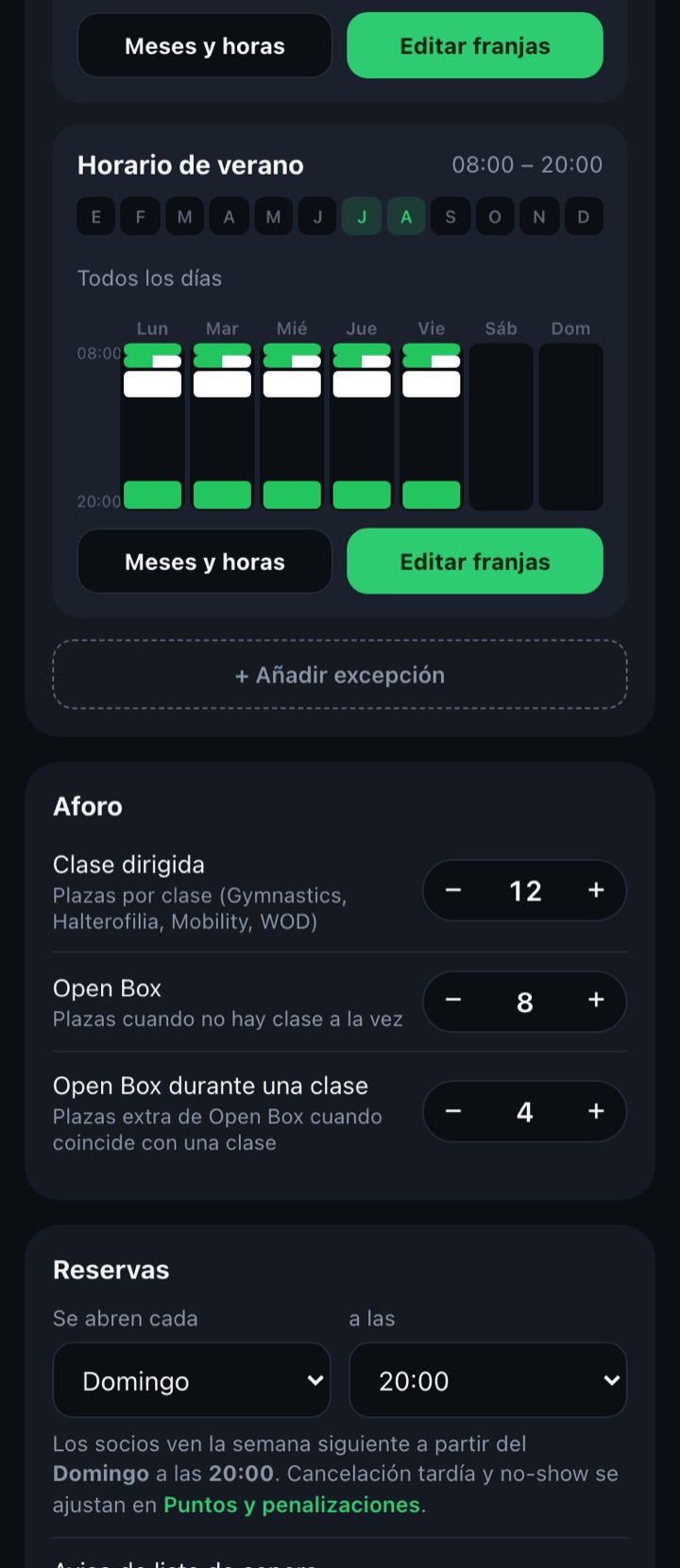
A schedule is a "season": the box's opening and closing, the months it applies to and which days it opens. First the regular schedule (all year) is created and then, if needed, exceptions for specific periods, for example a summer schedule for July and August that replaces the regular one only in those months.
Months and hours
Name
What you want to call the season ("Regular schedule", "Summer").
Opening and closing
Hours between which the box is open. Slots can only be created within that range.
Split schedule
If the box closes at midday: closing time and reopening time.
Months
Only for exceptions: months of the year in which this schedule replaces the regular one.
Days
Each day of the week can be open or closed, with the regular hours or custom hours for that day.
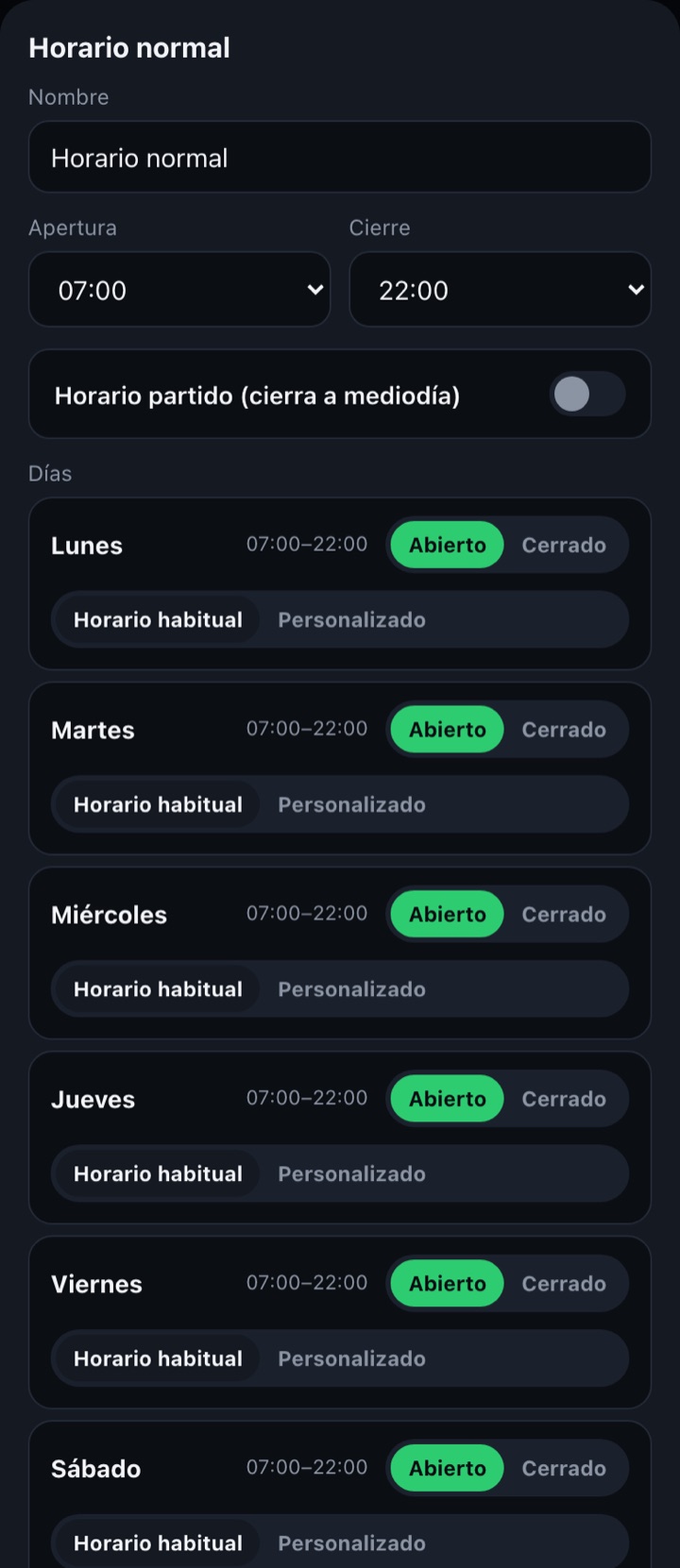
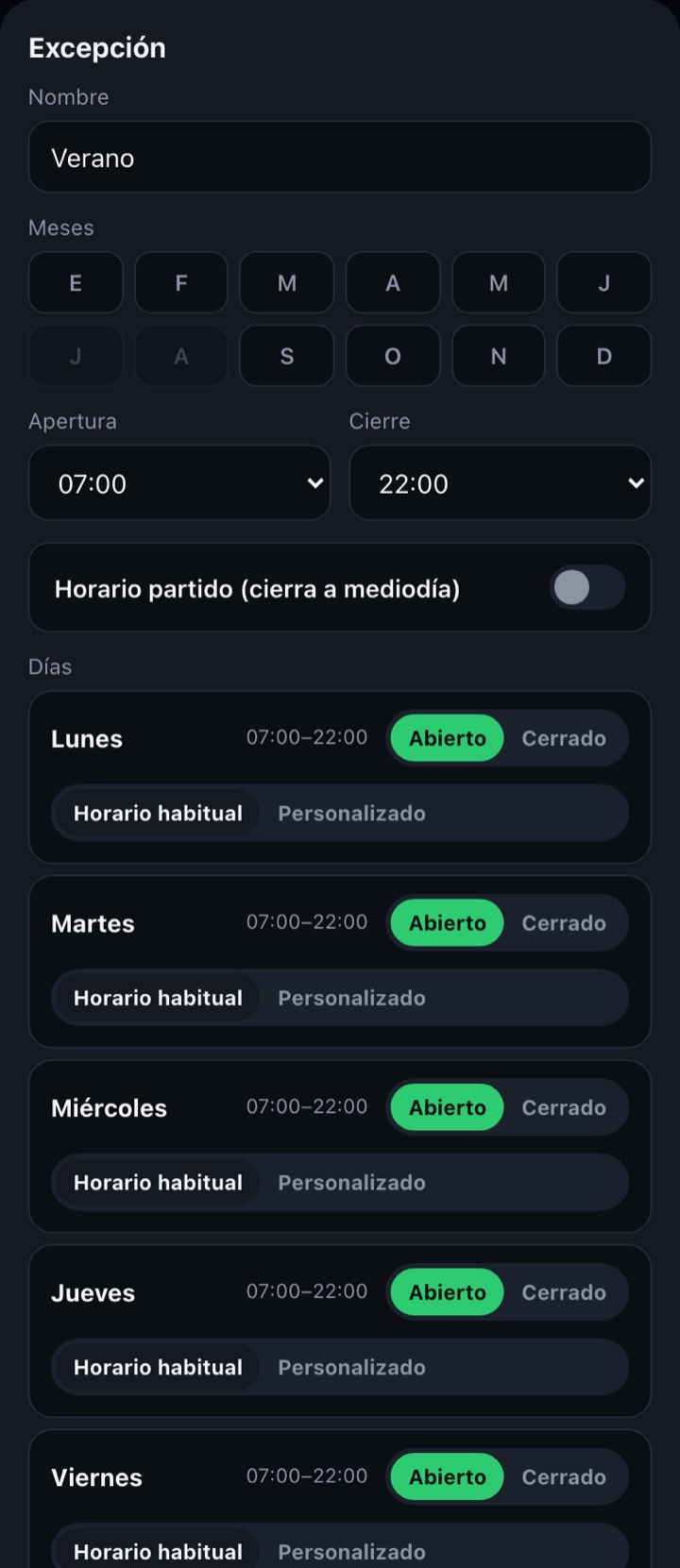
If you change the opening or closing hours and slots fall outside the new range, the app won't let you save and offers "Configure slots" to fix them first.
3. Slots
Slots are the actual classes of the week. They are edited from the "Edit slots" button of each schedule, in a seven-day grid: tap an empty gap to create a slot and tap an existing one to edit or delete it.
Slot details
Types in this slot
One or two types at once (for example "WOD + Open Box" when there is a class and free training in parallel).
From / To
Start and end time, within the day's hours. Two slots on the same day cannot overlap.
Points required
Only if you use the points system: how many it costs to book this slot.
Copy to…
Copies all of one day's slots to the days you tick, replacing theirs. Useful to fill the week starting from Monday.
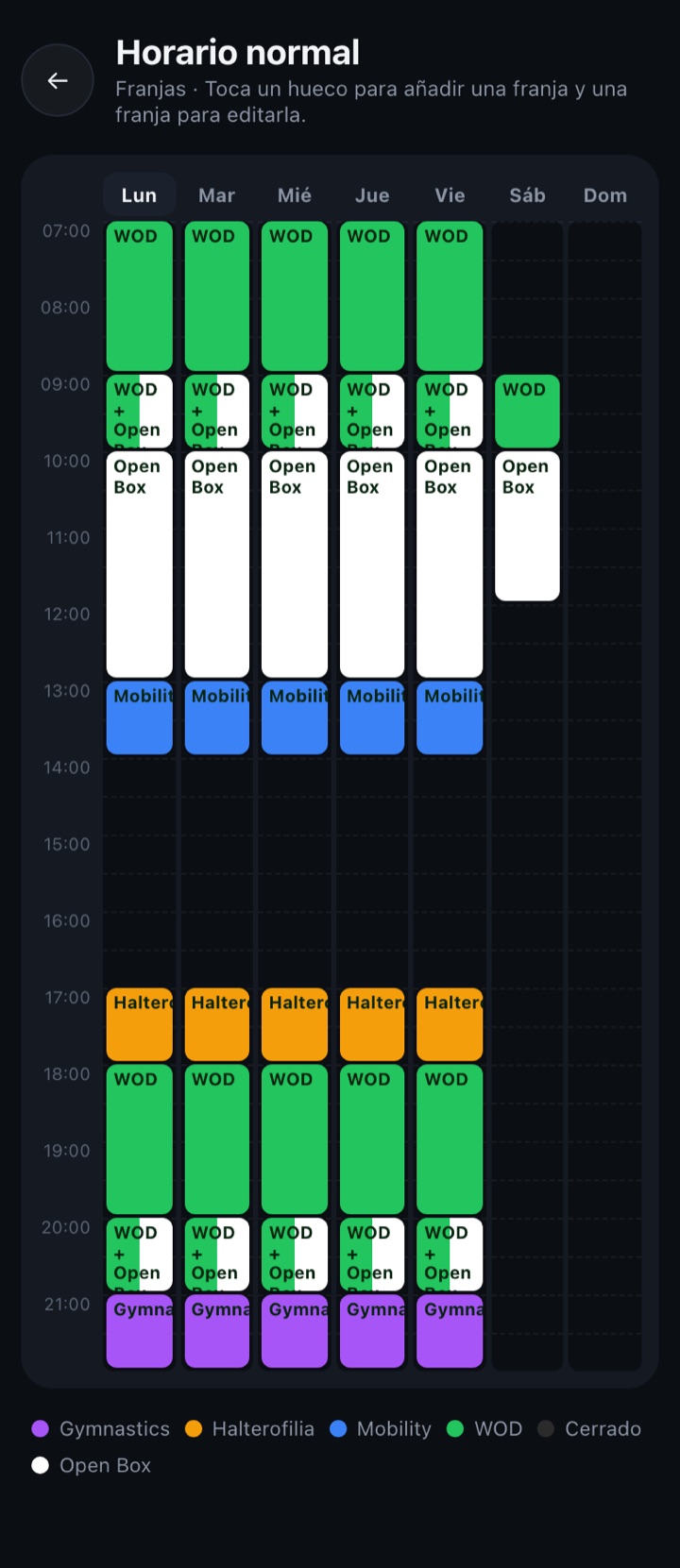
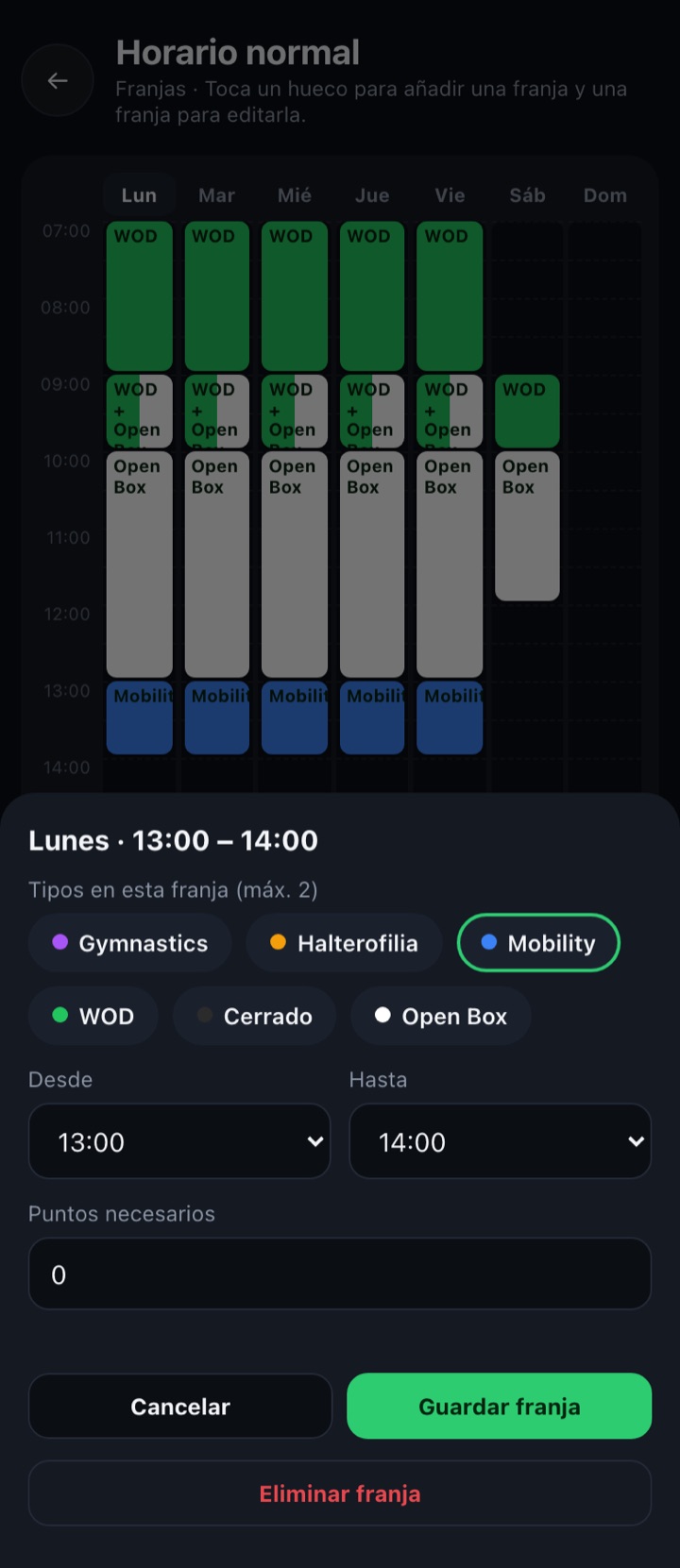
4. Capacity and bookings
Capacity
Guided class
Spots per class for any of your training types.
Open Box
Free-training spots when there is no class at the same time.
Open Box during a class
Extra Open Box spots when it overlaps with a guided class (0 if you don't want to allow it).
Bookings
They open every … at …
Day of the week and time from which members see and can book the following week.
Waiting list notice
Minutes before the class to notify the next person on the list when a spot frees up.
Late cancellation and no-shows are configured in Manage users → Points and Penalties.